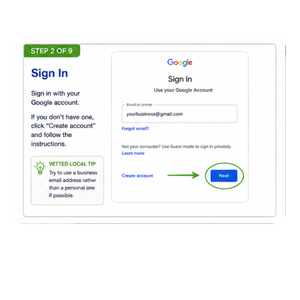
If you don’t already have one, click Create account and follow the instructions.
💡 Vetted Local Tip
Try to use a business email address rather than a personal one if possible.
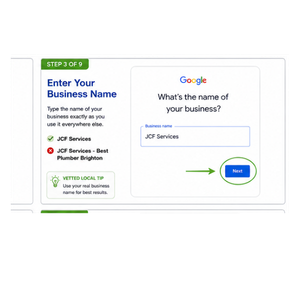
Step 3 – Enter Your Business Name
Type the name of your business exactly as you use it everywhere else.
For example:
JCF Services
Don’t try to add keywords like:
❌ JCF Services – Best Plumber Brighton
Just use your genuine business name.
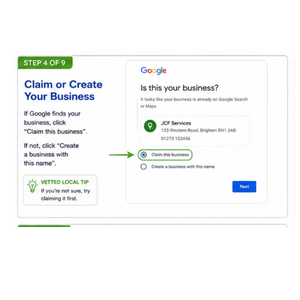
Step 4 – Does Your Business Already Exist?
Google may find your business.
If it does…
Click Claim this business.
If it doesn’t…
Click Create a business with this name.
Either option is fine.
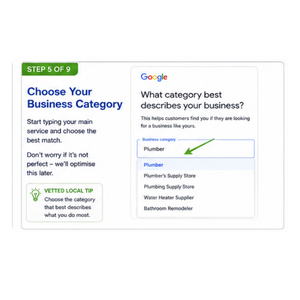
Step 5 – Choose Your Business Category
This tells Google what your business does.
Don’t worry about getting it perfect.
We’ll improve this in a later lesson.
Examples:
Plumber
Electrician
Builder
Roofer
Carpenter
Gas Engineer
Choose the category that best describes your main service.
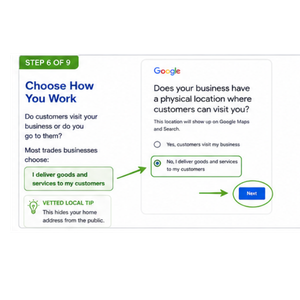
Step 6 – Choose How You Work
Google will ask if customers visit your business.
Most trades businesses choose:
I deliver goods and services to my customers.
This creates what’s called a Service Area Business.
Customers won’t see your home address if you don’t want them to.
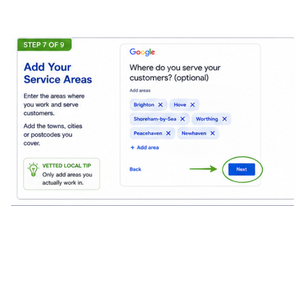
Step 7 – Add Your Service Areas
Now tell Google where you work.
For example:
Brighton
Hove
Shoreham
Only choose areas you genuinely work in.
Don’t add towns just because you want to rank there.
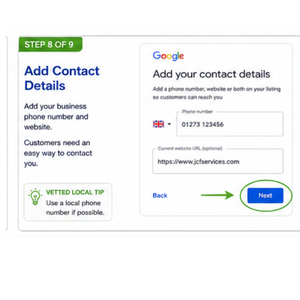
Step 8 – Add Your Contact Details
Enter:
Business phone number
Website address (if you have one)
If you don’t have a website yet…
Leave it blank.
You can always add it later.
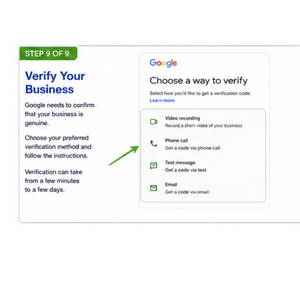
Step 9 – Verify Your Business
Google now needs to confirm that your business is genuine.
The verification method will vary depending on your business.
You may be asked to:
Record a short video
Receive a phone call
Receive a text message
Verify by email
Use another verification method provided by Google
Simply follow the instructions on your screen.
Verification can sometimes happen within minutes, but in some cases it may take a few days.
Congratulations!
If you’ve completed all the steps above, your Google Business Profile is now created or claimed.
You don’t need to make it perfect today.
The important thing is that you’ve taken the first step.
In the Lessons. we’ll show you how to turn a basic profile into one that looks professional, builds trust and gives your business the best chance of being found by local customers.
Enter your details below to unlock your personalised business report. You can then download or print your results.
100 % FREE -INSTANT ACCESS
Your Free Guide Is Almost Yours!
Enter your details below and get instant access to practical business advice.
Join VettedLocal – First Month Just £1
Get your first month of Vetted membership for just £1, then £39.99 per month. Your membership includes access to our Members Hub, with your Vetted badge awarded after successful verification.